
Getting around the app
The sidebar, switching business, notifications, quick search with Ctrl + K, keyboard shortcuts and dark mode.
#Help & About
Who makes the app, how to get help, and what it does. It has the user guide, a link to your licence and invoices in the customer account, the support email, a privacy summary, the What's new list and the Problem log.
| On the page | What it does |
|---|---|
| User guide | Opens these pages in your browser. |
| Your licence and invoices | Opens your account, where the licence, activated computers and payment receipts are. |
| Email support | Opens an email to contact@vyapzio.in with the problem details already in it. |
| Privacy and security | Opens Is it safe?, which lists what stays on this computer and every address the app connects to. |
Every purchase includes all future updates free for the lifetime of the licence. Nothing renews.
#Switching business
With more than one business saved, click its name at the top of the sidebar and choose another. Every screen changes to that business's invoices, purchases, expenses, receipts, recurring invoices, reports and returns. Manage profiles… opens Settings.
#Notifications
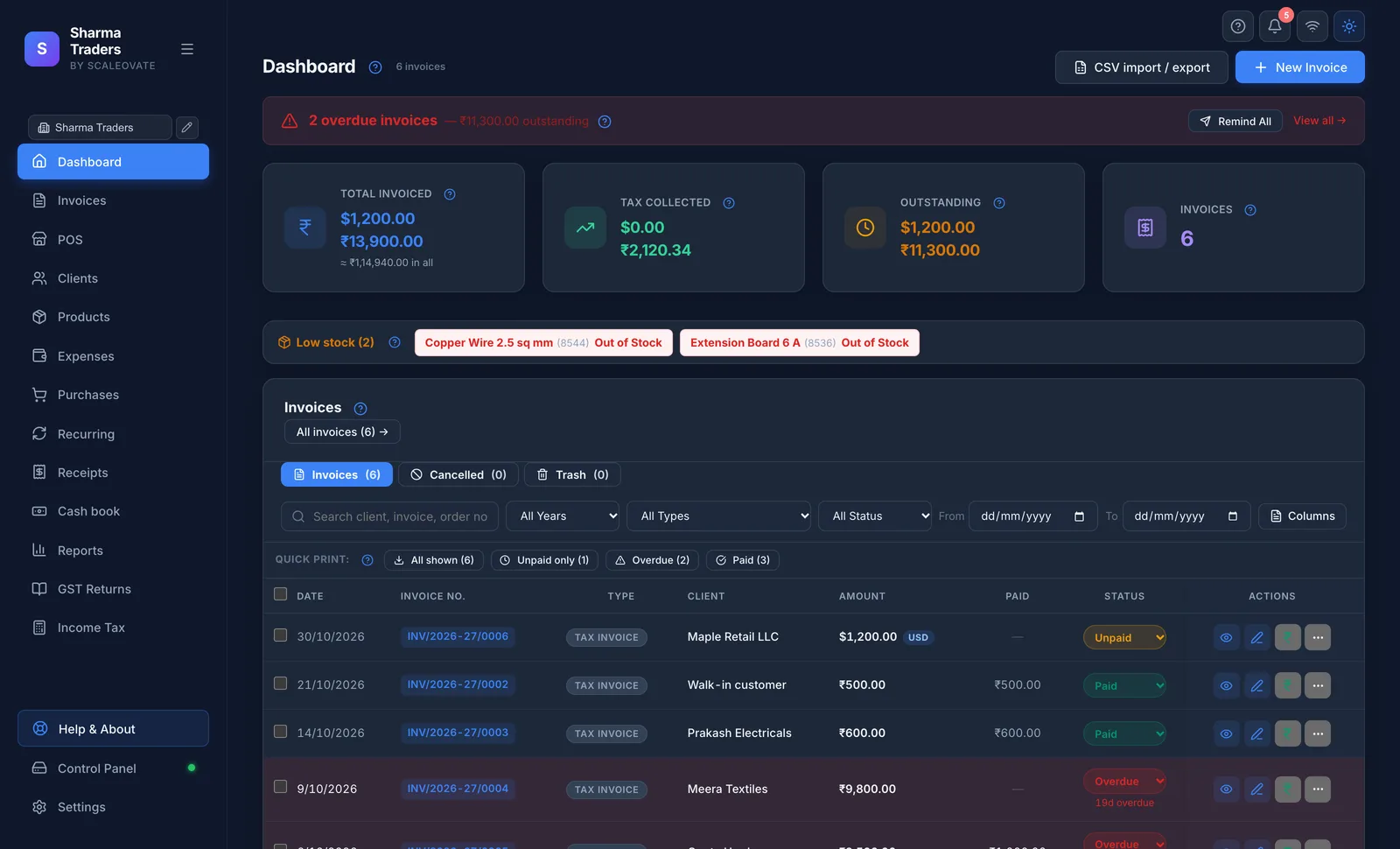
The 🔔 bell at the top right of every screen has a small red count when something needs you. It is your daily to-do list: who has not paid, what is due soon, which return to file, what to re-order. The app works it out by itself when it opens and again every 10 minutes; nothing is sent to you by SMS or email.
Click it to open the Notifications window. Each line is a button: click it and the window closes and takes you to the screen where you deal with it.
| Line | What it means | Clicking it opens |
|---|---|---|
| 🔁 N recurring invoices auto-generated today | The app made invoices from your recurring templates today. Check them and download the PDFs. | Dashboard |
| ⚠ N overdue invoices | Tax invoices, bills of supply and composition bills not fully paid whose Due Date has passed. The first three numbers are shown. Quotations, proformas, challans, credit notes and cancelled invoices never appear. | Dashboard (see Overdue invoices and reminders) |
| ⏰ N invoices due in next 3 days | Unpaid sales whose due date is today or within 3 days, with the client's name. A good time for a polite reminder. | Dashboard |
| 📋 N GST filings due in next 10 days | GSTR-1, GSTR-3B, TDS, TCS, advance tax and ITR dates coming up, with how many days are left ("today" or "4d"). | GST Returns (see the filing guide) |
| 📦 N products low on stock | Products at or below your low-stock limit (5 unless you changed it), with how many are left. Not shown when stock alerts are off in Settings. | Products (see Low stock) |
When nothing needs you, the window says All clear ✨ — nothing needs your attention right now.
Mark all as read clears everything shown and the count goes to zero. The app remembers exactly what you cleared, so a line comes back by itself only when something changes: a new invoice becomes overdue, a different product runs low, or the stock number changes. Clearing does not mark any invoice as paid; record the payment on the Dashboard for that.
An invoice I was paid for still shows as overdue. The payment is not recorded yet. Record it with the ₹ button on the Dashboard and the line goes away at the next check.
No due-date reminders at all. Only invoices with a Due Date can become overdue or due soon. Set one in Invoice Details, or give the client payment terms.
The filing dates do not match my returns. The dates are the usual monthly due dates. If you file quarterly (QRMP) or the government extends a date, go by the GST portal.
#Quick search: Ctrl + K
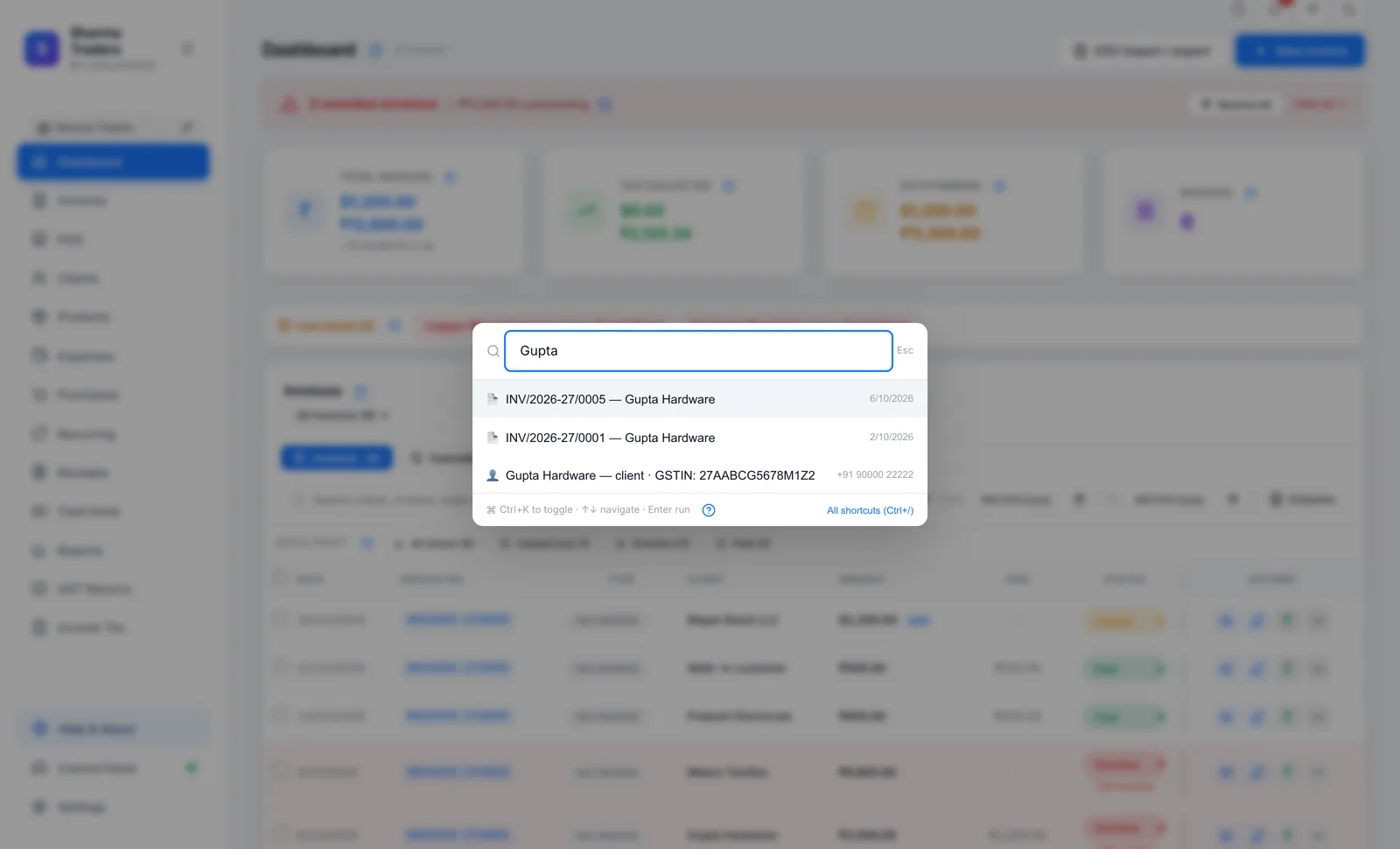
Press Ctrl + K anywhere, even while typing, and start typing. You can:
- go to any screen, or start a new invoice;
- open an invoice by its number or client;
- find a client by name or GSTIN, or a product by name or HSN, which opens their list;
- jump to Settings, switch dark mode, or see what is new in an update.
- Open itPress Ctrl + K (Mac: ⌘ + K). A box opens with Type a command or page name…
- Type a few lettersFor example
gst, an invoice number such as0012, or part of a client's name. The list narrows as you type. - Pick oneMove with ↑ ↓ and press Enter, or click it. The box closes and the screen opens.
Esc, or a click outside the box, closes it. If nothing fits you see Nothing matches "…": try fewer letters. All shortcuts (Ctrl+/) at the bottom opens the list of keyboard shortcuts.
#Keyboard shortcuts
| Ctrl + K | Quick search |
| Ctrl + N | New invoice |
| Ctrl + S | Save the invoice (on the invoice screen) |
| Ctrl + P | Download the PDF (on the invoice screen) |
| Ctrl + Shift + L | Lock the app (when a PIN is set) |
| Ctrl + / | Show or hide the Keyboard Shortcuts window, which lists these |
| Esc | Close a dialog |
| Enter | Confirm a dialog |
On the invoice screen there are more: see Keyboard shortcuts on this screen. On a Mac, use ⌘ instead of Ctrl.
#Dark mode
The moon button at the top right of every screen switches the app to dark colours, and the sun button switches back. Invoices and PDFs always print in their normal colours.
#"Needs a Quick Start"
Vyapzio is a desktop program: opening its shortcut starts the app and its built-in server together. If the server is not running, for example because it was stopped or crashed, the window says Vyapzio Needs a Quick Start. Your data is safe. Close the window and open Vyapzio again from the Desktop, Start menu or Applications. If it still does not start, see Failed to fetch.